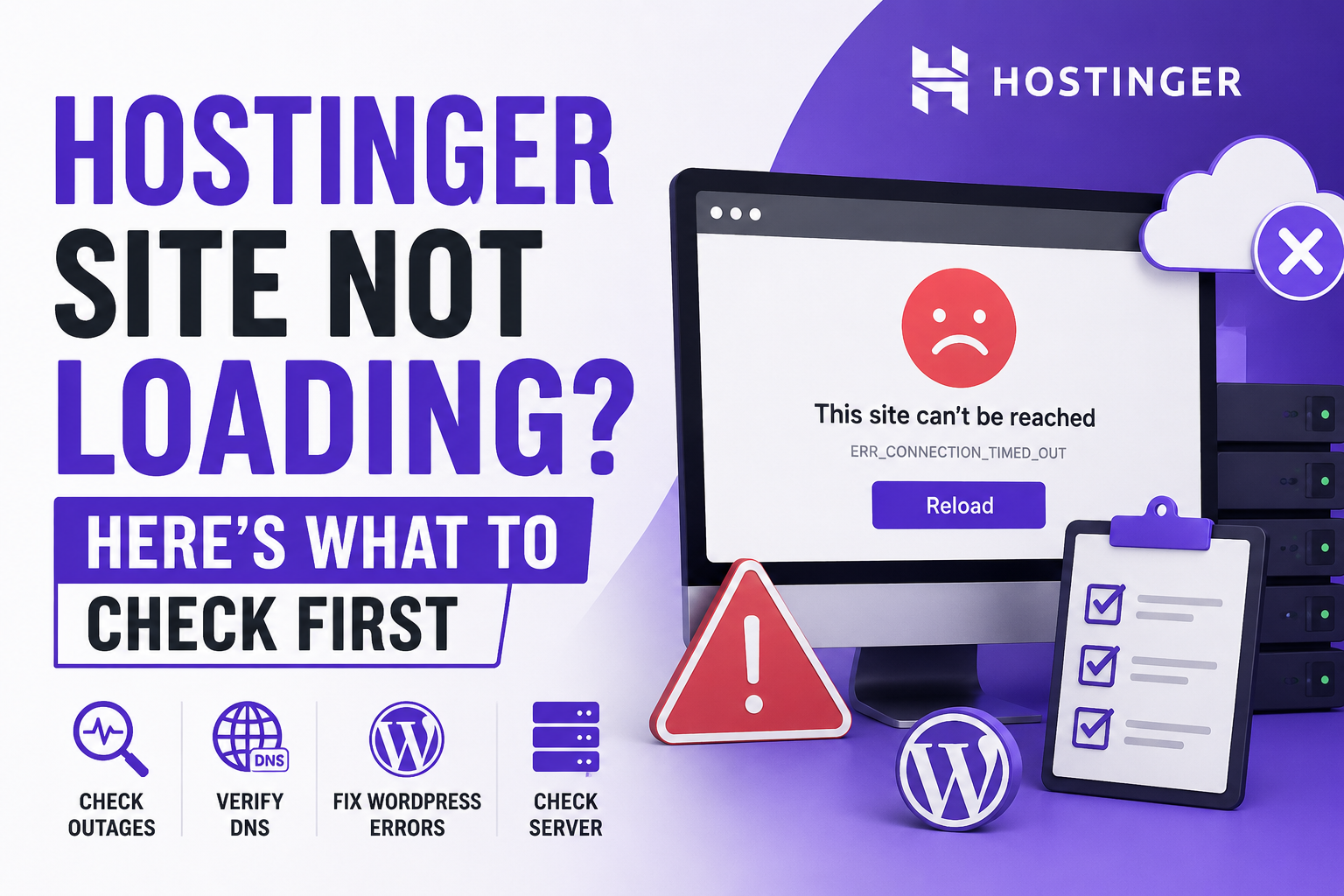
So your site’s down. Before you panic and start ripping apart your WordPress install, ask the boring question first: is this Hostinger’s fault, or is it yours? I’ve lost hours in the past digging through plugin settings only to find out the whole server cluster was just having a bad afternoon. Don’t be me.
This is roughly the order I go through.
Step one: rule out a Hostinger-wide problem
Go to statuspage.hostinger.com first. It’ll show you what’s happening with server clusters, hPanel, DNS, email — and it’s split by region, so you can zero in on North America, Europe, Asia, whatever applies to your server. Worth glancing for any scheduled maintenance too, since that’ll explain a lot on its own.
One catch: that page isn’t instant. Outages can take 10-15 minutes to actually show up there, so if it’s still saying everything’s fine and your gut says otherwise, check a couple of third-party trackers too:
- StatusGator or IsDown pull from official APIs plus what other users are reporting, so you’re not relying on Hostinger to self-report.
- DownForEveryoneOrJustMe answers a slightly different question — is the site actually unreachable, or is it just your wifi being weird.
What those status words actually mean
Every host uses more or less the same four labels, and it’s easy to skim past them without really knowing what to do next:
- Operational means the problem’s yours, not theirs. Skip ahead to the next section.
- Degraded performance means it’s up but sluggish — usually heavy load. Not a great moment to push a big update or run an import.
- Partial outage means some piece is broken, not everything — mail routing or hPanel, say. Check if that piece is actually one you rely on.
- Major outage means sit tight. There’s genuinely nothing to do but wait for their team.
Everything checks out on Hostinger’s end — now what
Annoying as it is, this is actually the better outcome. It means you can fix it yourself, right now.
Domain and DNS. Check that the domain hasn’t expired without you noticing (it happens more than people admit). Confirm it’s pointed at Hostinger’s nameservers, typically ns1.dns-parking.com and ns2.dns-parking.com. And if you touched any DNS or A records in the last day or so, just wait — propagation can genuinely take up to 48 hours, even if that feels absurd in 2026.
WordPress throwing a 500 error or just showing white? Work through this in order:
- PHP version first. hPanel → Advanced → PHP Configuration. Make sure whatever’s active is actually what your theme and plugins want.
- Plugin conflict is next most likely. Go into File Manager or FTP and rename
/wp-content/pluginsto something likeplugins_old. Site comes back? One of your plugins was the problem — rename them back one at a time until you catch it. - If you’re still stuck, flip on debug mode so you get a real error instead of a vague crash page. In
wp-config.php:
define('WP_DEBUG', true);“Error Establishing a Database Connection” almost always comes down to WordPress and MySQL not agreeing on credentials. Pop open wp-config.php and compare DB_NAME, DB_USER, DB_PASSWORD, and DB_HOST against what hPanel actually has on file.
Hitting your resource limits? Shared hosting has a ceiling on CPU and RAM, and once you’re bumping it constantly, you’ll see dropped connections or 503s. hPanel’s Resource Usage page will tell you if that’s what’s going on. If it is, clean up transient data, trim down heavy queries, or just bump your plan up a tier.
When it’s just email that’s broken
Hosting and email are separate systems under the hood, so yes, your site can be perfectly fine while your inbox goes silent. A few things worth checking:
- MX records need to point at mx1.hostinger.com and mx2.hostinger.com.
- A full mailbox bounces everything new that comes in — check your storage.
- No SPF or DKIM records won’t kill your outgoing mail, but it’ll land straight in everyone’s spam folder.
So the next outage doesn’t wreck your day
Hardware fails sometimes. Nothing you do prevents that entirely. But you can make sure it barely matters when it happens:
- Back up somewhere that isn’t your host — Google Drive, S3, wherever — and automate it with something like UpdraftPlus so you’re not relying on your own memory.
- Set up uptime monitoring (UptimeRobot works fine) so you hear about downtime from an alert, not from an angry email.
- Stick Cloudflare in front of the site. It’ll keep serving cached pages even when your actual server stumbles, so most visitors never even notice.