Ever find yourself opening Safari to “quickly check one thing,” only to wake up from a two-hour trance deep in a rabbit hole of random internet nonsense? We’ve all been there.
Whether you’re trying to rescue your own productivity, keep your kids away from the weird corners of the web, or just stop compulsively refreshing social media, learning how to block websites on Safari is a total game-changer.
The best part? You don’t need to download sketchy third-party apps or be a tech genius to do it. Apple actually has a built-in “digital velvet rope” called Screen Time. Here is how to set it up across your devices without losing your mind.
Method 1: Blocking Websites on iPhone & iPad
If your phone is your biggest distraction machine, this is where you start.
-
Head to Settings: Open up Settings on your device and tap Screen Time.
-
Lock It Down (Optional): If you’re setting this up for a child—or if you know you lack the self-control not to immediately undo your own block—set a Screen Time Passcode.
-
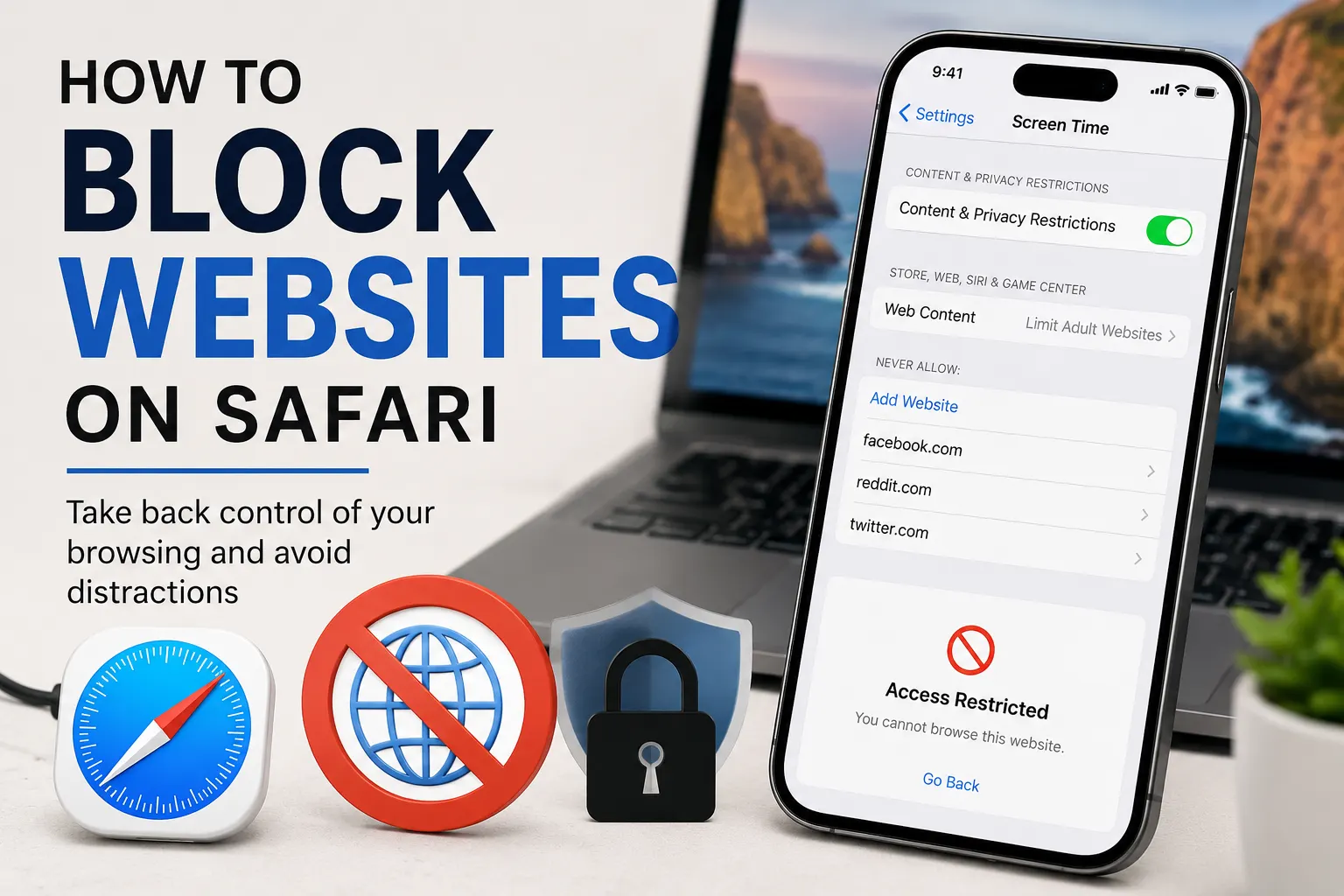
Navigate to Web Content: Tap Content & Privacy Restrictions, toggle it ON, and then tap Store, Web, Siri & Game Center (or App Store, Media, Web & Games, depending on your iOS version).
-
Choose Your Restriction Level: Tap Web Content. You’ll see three options:
-
Unrestricted: The wild west.
-
Limit Adult Websites: The best middle ground.
-
Allowed Websites Only: Total lockdown mode.
-
-
Add Your Blacklist: Select Limit Adult Websites. A new section called NEVER ALLOW will pop up at the bottom. Tap Add Website, paste in the URL of the site you want to banish (e.g., reddit.com), and hit Done.
Voila! Next time you try to visit that site, Safari will hit you with a big, polite “Access Restricted” screen.
Method 2: Blocking Websites on a Mac
Trying to get actual work done on your Mac? Mac’s macOS version of Screen Time works almost identically to the mobile version.
-
Click the Apple Logo in the top left corner of your screen and select System Settings.
-
Click Screen Time in the sidebar. (If you manage a family group, make sure you select the right profile from the drop-down menu at the top!)
-
Select Content & Privacy and make sure it’s turned on.
-
Click on Access to Web Content.
-
Choose Limit Adult Websites, click the Customize button, and add the URLs you want to block under the Restricted list.
The “Nuclear Option”: Approved Websites Only
What if you’re setting up an iPad for a young child or a strictly single-purpose work device? Instead of playing whack-a-mole with millions of bad websites, you can flip the script.
By selecting Allowed Websites Only (or Only Approved Websites) in your Screen Time settings, Safari will block everything on the internet except a custom whitelist of safe sites you explicitly approve (like PBS Kids or a school portal).
It takes a few extra minutes to set up initially, but it offers complete peace of mind.
Why Use Apple’s Built-In Tools?
Sure, there are plenty of browser extensions out there, but using Apple’s native Screen Time has a few massive perks:
-
Zero Extra Downloads: It’s already on your device, light on battery, and totally free.
-
System-Wide Security: Kids (and clever adults) can’t just delete an extension or switch to Private Browsing to bypass it.
-
Ecosystem Sync: If you use iCloud Family Sharing, you can adjust settings for your kids’ devices right from your own phone.
A Quick Pro-Tip Before You Start
Because Apple loves to tweak its layout with every software update, button names like “Content Restrictions” or “Web Content” might look slightly different depending on whether you’re running iOS 16, 17, or a newer macOS. If a setting isn’t right where you expect it, a quick system software update usually clears up the confusion!
Now go forth, block those time-wasters, and reclaim your attention span. You’ve got this!